

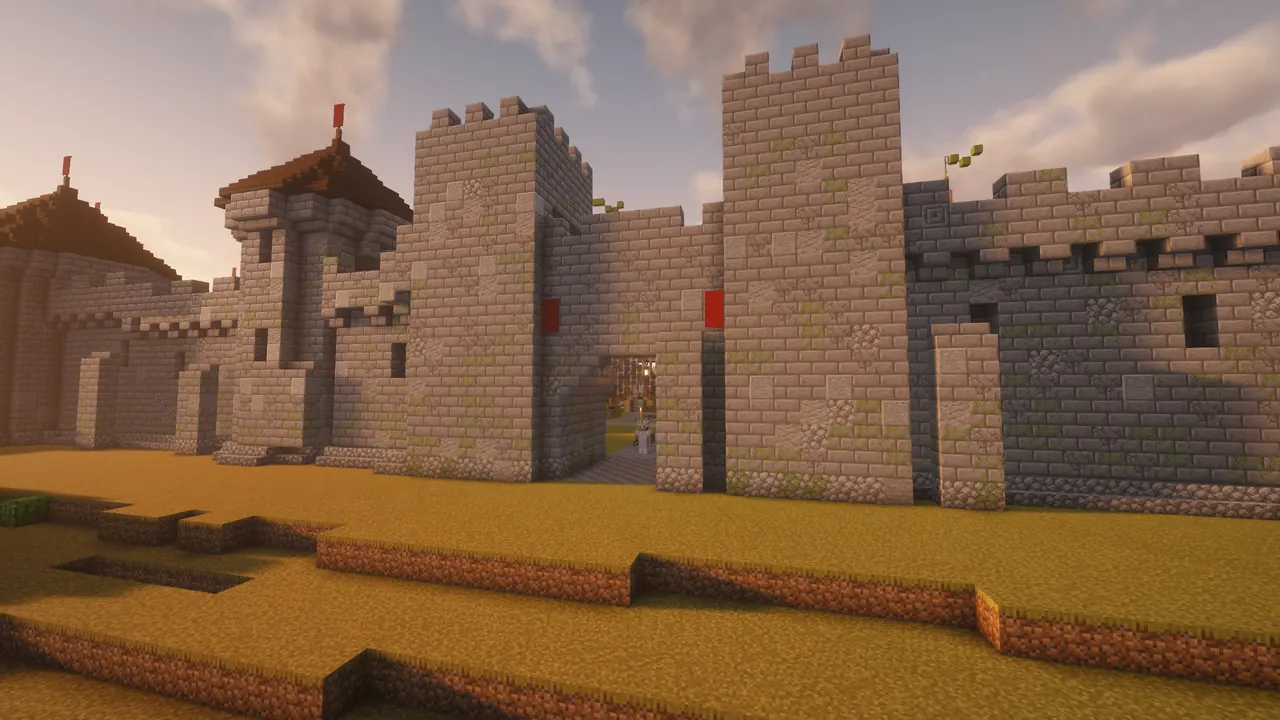
 How to join
From download to Lemurton
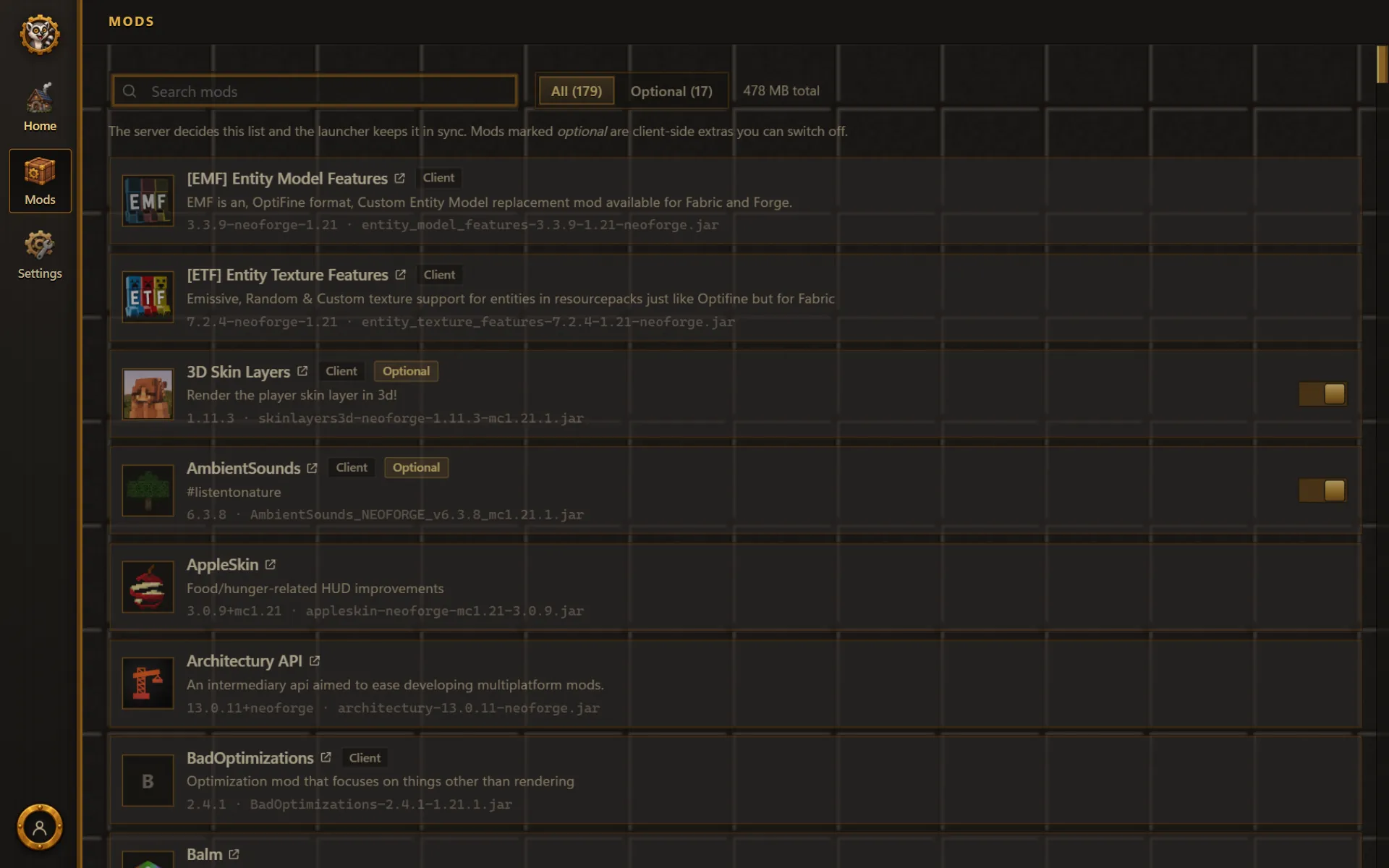
One installer, one sign-in, one button. The launcher does the rest: Minecraft, Java, NeoForge and all 179 mods, kept identical to the server's.
What you need
| Minecraft | Java Edition, on a Microsoft account. (Bedrock, the Windows Store and console versions can't join.) |
|---|---|
| Computer | Windows 10 or 11, 64-bit. Mac and Linux: see below. |
| Memory | About 8 GB free. The launcher gives the game 6 GB, which you can change. |
| Disk | A couple of gigabytes for the game, Java and the mods. |
| Graphics | Anything that runs modern Minecraft. Shaders want a decent graphics card, and they're off until you turn them on. |
1. Install the launcher
- Download
LemurSaucePacket-Setup-0.1.7.exe, about 110 MB. It comes straight from the pack's GitHub releases. - Run it. It installs for your Windows user only, with no admin rights, and puts a shortcut on the desktop and in the Start menu.
- If Windows says "Windows protected your PC", click More info, then Run anyway. The warning is SmartScreen meeting an installer that isn't code-signed yet; the launcher's source is public on GitHub.
2. Sign in with Microsoft
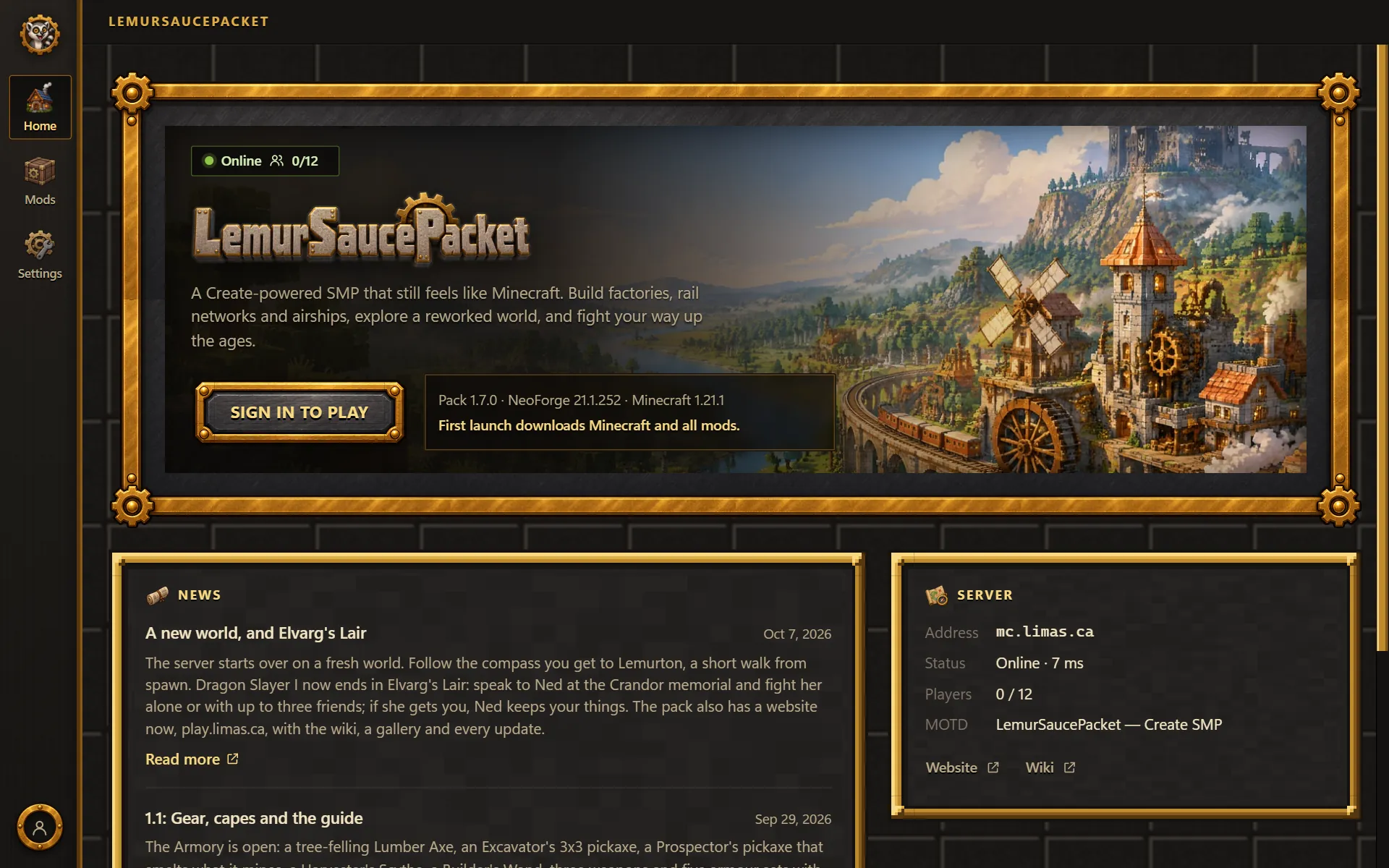
Open the launcher and press Sign in to play. Your browser opens Microsoft's own sign-in page; if the launcher shows a code, enter it there. Use the Microsoft account that owns Minecraft. Your password goes to Microsoft and nowhere else, and the launcher remembers you next time.
3. Press Play
The first time, the launcher downloads Minecraft 1.21.1, Java, NeoForge and every mod: a few minutes on a normal connection, and you can watch it on the Play button. After that a launch checks the pack in a second or two, and if there's an update it installs it first.
Then you're on the server. The launcher puts mc.limas.ca in your multiplayer list and, unless you turn it off, joins it straight away.
The whitelist
The server is for a group of friends and keeps a whitelist. Before your first login, ask an admin to add your Minecraft name. If the server says you're not whitelisted, that's all it means.
Your first hour
- Follow the compass. Your first login hands you a Compass to Lemurton, and the chat says how far and which way. The capital is a few minutes' walk from spawn.
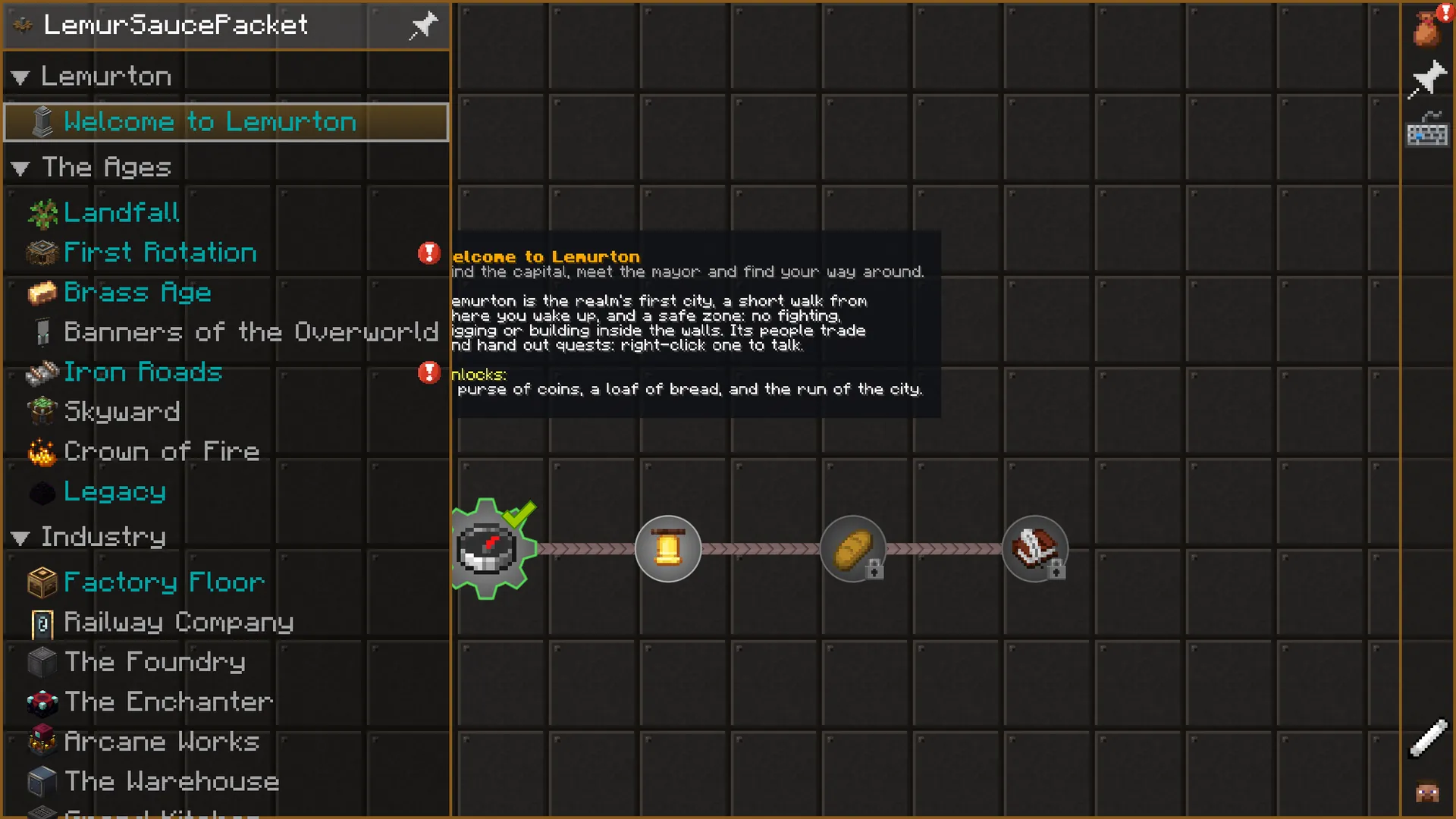
- Talk to Mayor Thaddeus by the market for the first quest, Welcome to Lemurton. It pays coins and points you at the shops.
- Touch the Lemurton waystone in the market square, so you can always warp back.
- Open the quest book (ESC, then Quests). The first chapter, Landfall, is the tutorial.
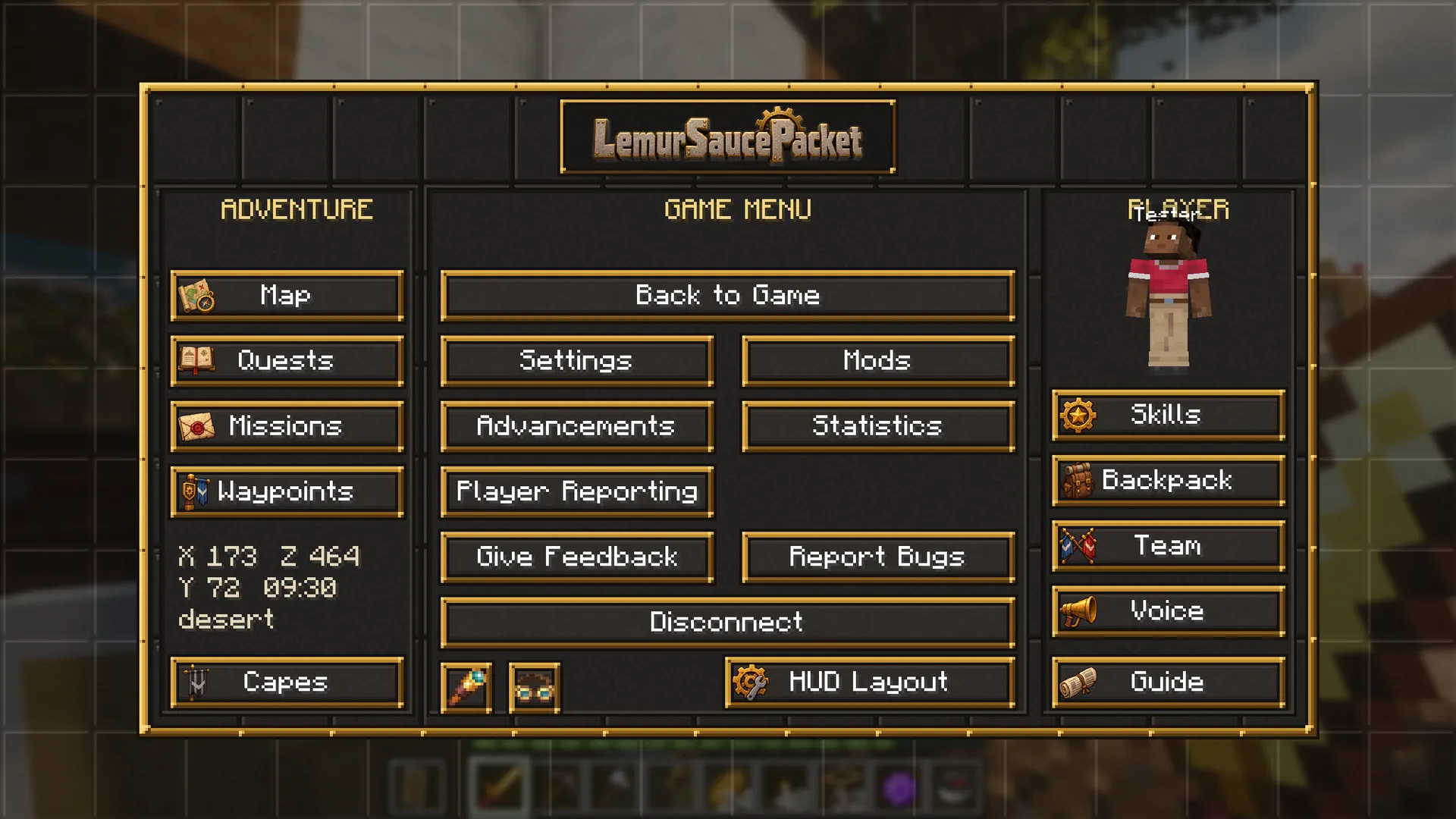
- Press ESC whenever you're lost: the map, quests, missions, skills, your backpack and the guide book are all there.
Launcher settings
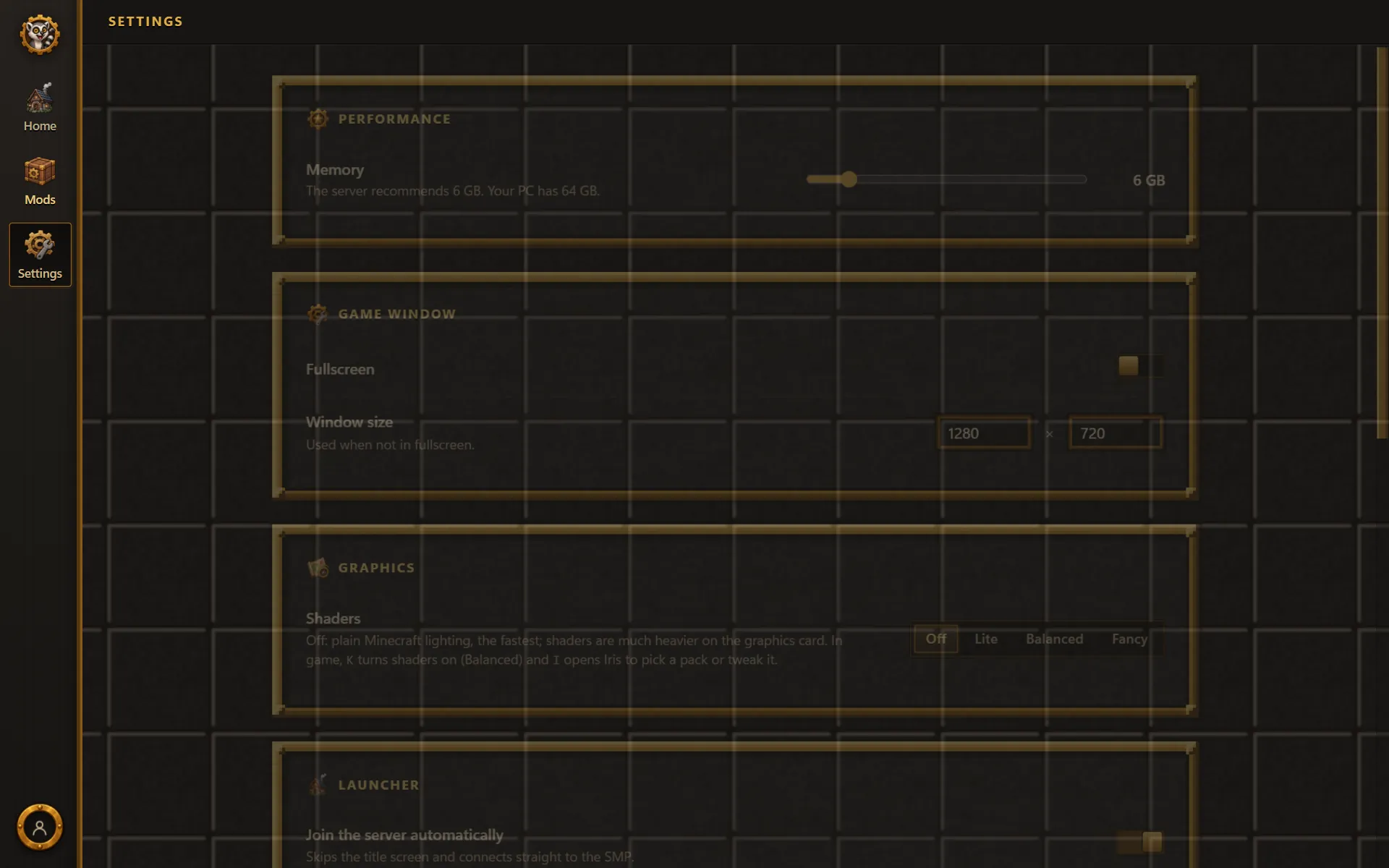
Everything has a sensible default, so you can skip this. On the Settings page:
- Memory: how much RAM the game gets. 6 GB is the server's recommendation; more helps with shaders.
- Shaders: Off, Lite (MakeUp Ultra Fast, for any PC), Balanced (Complementary Reimagined) or Fancy (Complementary Unbound). In game, K switches shaders on and off and I opens Iris to choose or tweak a pack.
- Join the server automatically: turn it off to see the title screen first.
- Files and repair: the game, screenshots and logs folders, and Repair and play, which re-checks every file.
Updates
You never update anything by hand. The pack updates the next time you press Play, and the launcher updates itself: when a new version has downloaded, a "Restart to update" chip appears in its title bar. The updates page lists what changed.
On a Mac, on Linux, or with Prism Launcher
The launcher is Windows only for now. Anywhere else, use Prism Launcher with the pack's .mrpack:
- Download the current LemurSaucePacket .mrpack (pack 1.7.0).
- In Prism: Add Instance, Import, and pick the file. Give the instance 6 GB of memory in its settings.
- Start it and add
mc.limas.caas a server.
Prism doesn't update the pack for you: when the pack changes, import the new .mrpack over the old instance, or the server will turn you away with "mismatched mods".
Troubleshooting
"Connection Lost: channel missing" or "mismatched mods"
Your mods and the server's disagree. Close the game and press Play again (the launcher re-syncs the pack); if it still happens, use Repair and play on the Settings page.
The game crashed
The launcher's Home page shows the last lines of the crash and can open the crash-reports folder. Send the newest report to an admin.
Low frames
Lower the render distance in Video Settings, give the game more memory, or turn shaders off (K in game, or Off in the launcher).
Voice chat isn't working
Press V and check your microphone; O mutes and unmutes it. Voice needs UDP, so a strict firewall can block it.
Anything else
The wiki's FAQ and troubleshooting page has more, and an admin on the server can help.